
Spaces and canvases
Contents
A space groups related agent sessions, canvases, and the background an agent needs to work there. Use your personal space for private work. Other spaces are shared with your project, so teammates can see and continue the work.
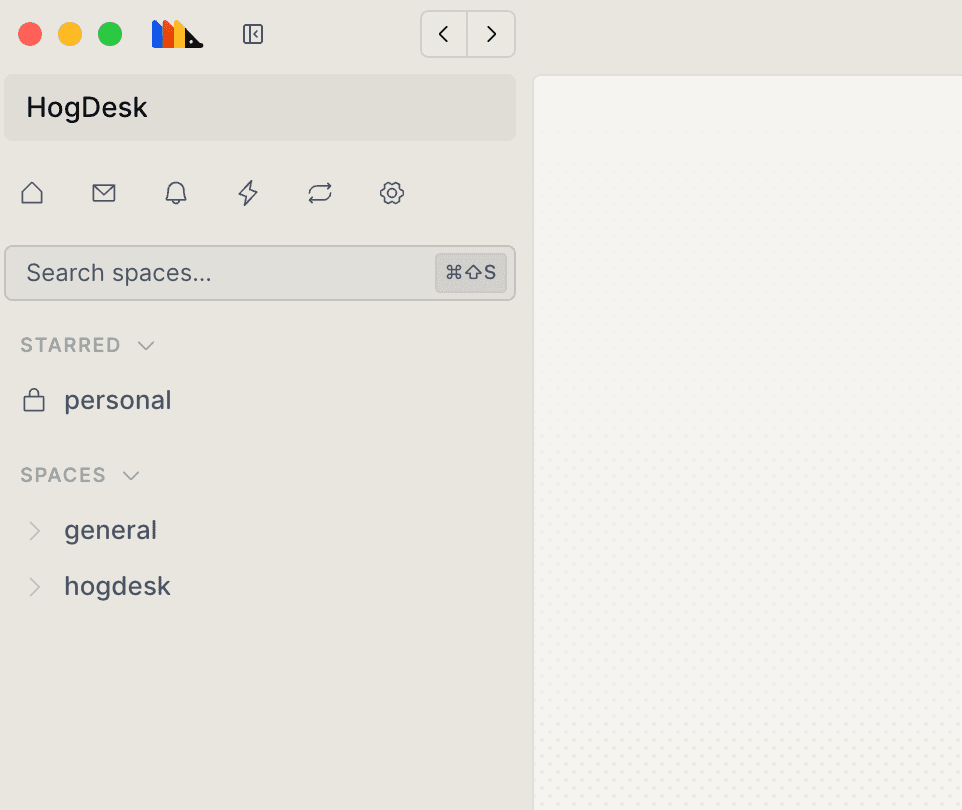
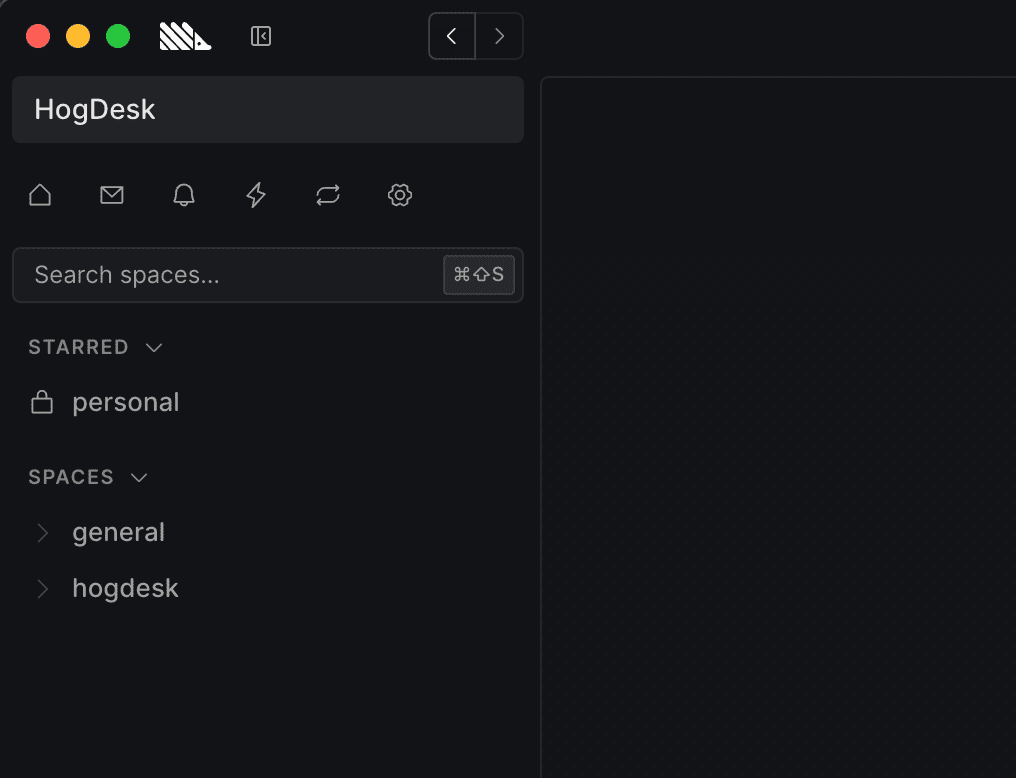
Create a shared space by selecting the + icon in the left-hand navigation. Give it a name and description, then choose the repositories it works with. PostHog Desktop can use the description to draft its CONTEXT.md.
New session
Select New session to start an agent session in the space. Describe the outcome you want, choose a repository, and select how and where the agent should work. See PostHog Desktop tasks for task modes and agent controls.
Feed
Open a space, then select Feed to see its agent sessions and canvases. Use the feed to follow work, review results, and see when an agent or teammate needs input.
Open an item to discuss it in a thread and review artifacts such as canvases and pull requests. Type @ to mention a teammate or the agent. Teammates receive a notification and can continue the work from the same thread.
Context
Each space can hold a CONTEXT.md with the project background, conventions, and product information agents need. It applies to every agent session in the space, no matter where the task runs.
PostHog Desktop can draft it from the space's repositories and selected PostHog project. Edit it as the project changes.
Sessions
The Sessions tab lists the agent sessions in the current space. Select a session to open its full conversation, progress, code changes, and pull request. Use the search, filter, sort, and grouping controls to find previous work.
Canvases
A canvas is an interactive app an agent builds around your PostHog data. Describe what you need, and the agent builds it inside PostHog Desktop. You do not need to write SQL, set up a frontend, or fit the work into a standard dashboard.
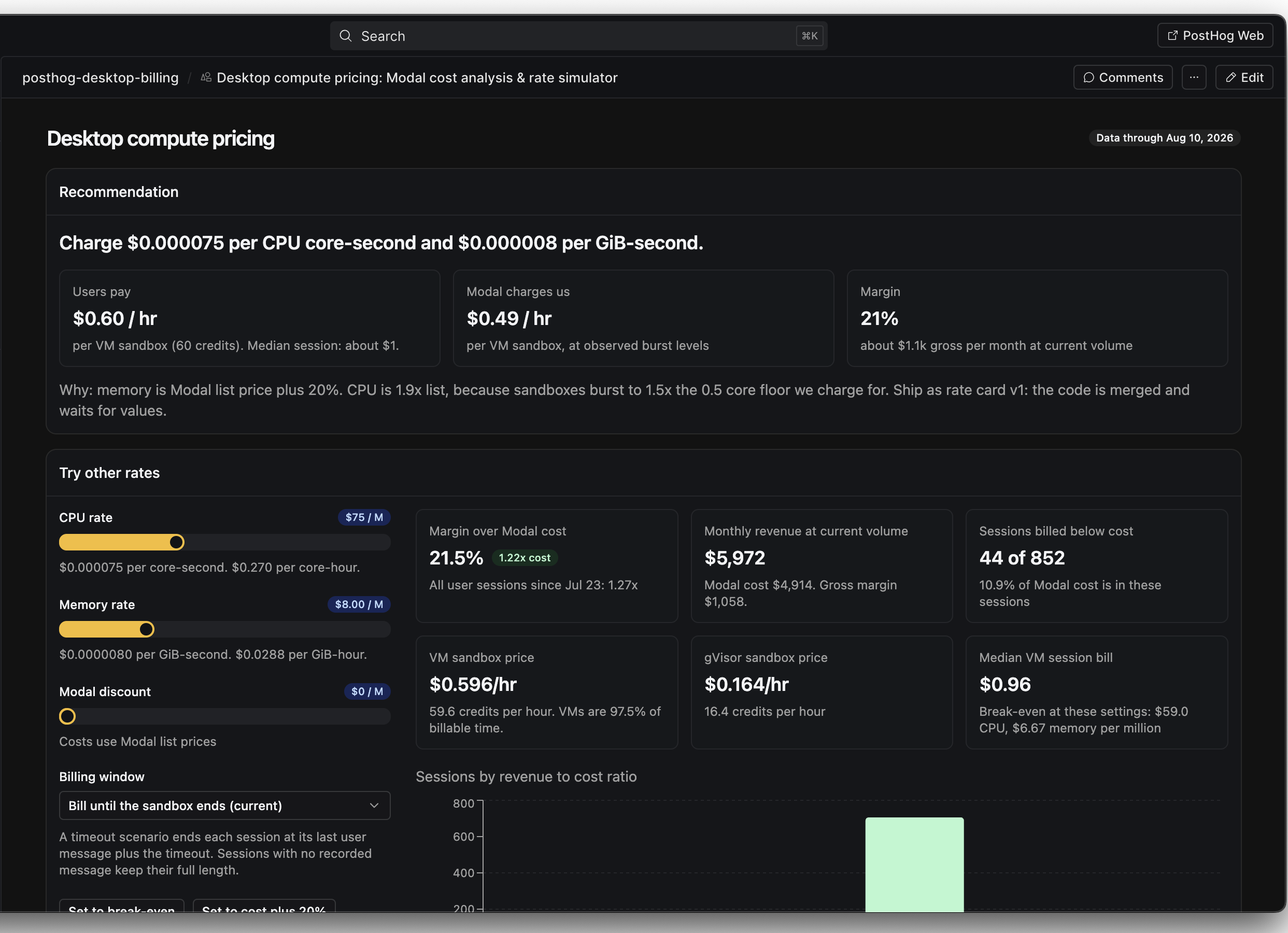
Use canvases to answer recurring questions or give a team one place to complete a workflow. For example:
- Track release health across adoption, errors, support reports, and open pull requests
- Build a customer lookup tool for support
- Create a weekly product report with the metrics and commentary your team cares about
- Compare a feature rollout with the behavior and feedback behind the numbers
- Give a team an interactive scoreboard with filters and shared state
A canvas can combine saved insights with new queries, add controls such as filters and date ranges, remember a viewer's choices, and share state with the team. It can also capture events or offer approved actions rather than only display data.
Build and improve a canvas
Ask for a canvas in any session, or start one from the Canvases tab. The agent builds a working first version against the PostHog project you selected.
Use comments to request changes. Select a specific part of the canvas to anchor your feedback, or comment on the whole app. Each rebuild creates a version, so you can compare changes and revert if the result gets worse.
Share the finished canvas with your team. It stays in its space beside the sessions and context that produced it, so people can understand why it exists and continue improving it.
Share spaces and canvases
Copy link gives you an HTTPS link that opens the space, thread, or canvas in PostHog Desktop. If the app does not open, the browser shows options to try again or download PostHog Desktop. Recipients still need access to the shared content.